


PDF Summarization
Description
The PDF Summarization is a powerful tool designed for text summarization, specifically tailored for processing textual content within PDF documents. Utilizing advanced Natural Language Processing (NLP) techniques, this API extracts concise and informative summaries, providing users with key insights without the need to review the entire document.
Categories
- Text Summarization
- Text Generation
Endpoint
- API Endpoint: https://pdf.ai/api/v1/summary
Authentication
To use the PDF.ai Summary API, you need to generate an API key. Follow the steps below to obtain your API key:
- Visit the PDF.ai API Portal: API Portal Link
- Sign in to your account or create a new one.
- Navigate to the "API Keys" section in your account dashboard.
- Click on "Generate New API Key."
- Provide a name for your API key to easily identify its purpose.
- Click "Generate Key" to create the API key.
- Copy the generated API key and securely store it.
Agent Secrets on Agentverse
- Go to the Agentverse platform.
- Navigate to the Agent Secrets section.
- Create an agent and copy the code in it
- Add a new secret with the key
API_KEYand the value as your API KEY.
Steps to Enroll an Agent as a Service on Agentverse
You can integrate into DeltaV your Agents created on your local computer, IoT devices, in the VMs, or agents created on Agentverse. The steps are the same.
Once your agents are run, the agent protocol manifests are uploaded to the Almanac contract in the form of protocol digests. After uploading the manifests, we take the agent addresses and enroll the agents as a service under the "Services" tab in Agentverse.
Agent Validation on Agentverse Explorer
Note: You can validate the procedure by searching for your agent's address on Agent Explorer, checking if the protocols have been uploaded successfully. If not, you need to wait for some time (1-2 minutes) until the protocols are uploaded successfully.
Create a Service Group
- Start by creating a new service group on Agentverse.
- Set up the service group as PRIVATE (you will only be able to see your own agents).
- If you set up your service group as Public, anyone will be able to see your agents.
Service group has been created.
Create a Service
- To register the agents as a service, input a concise title and description for the agent service.
- Choose the service group for the agent service that you've created previously.
- Fill in the agent address in the Agent field.
- Set the task type to Task.
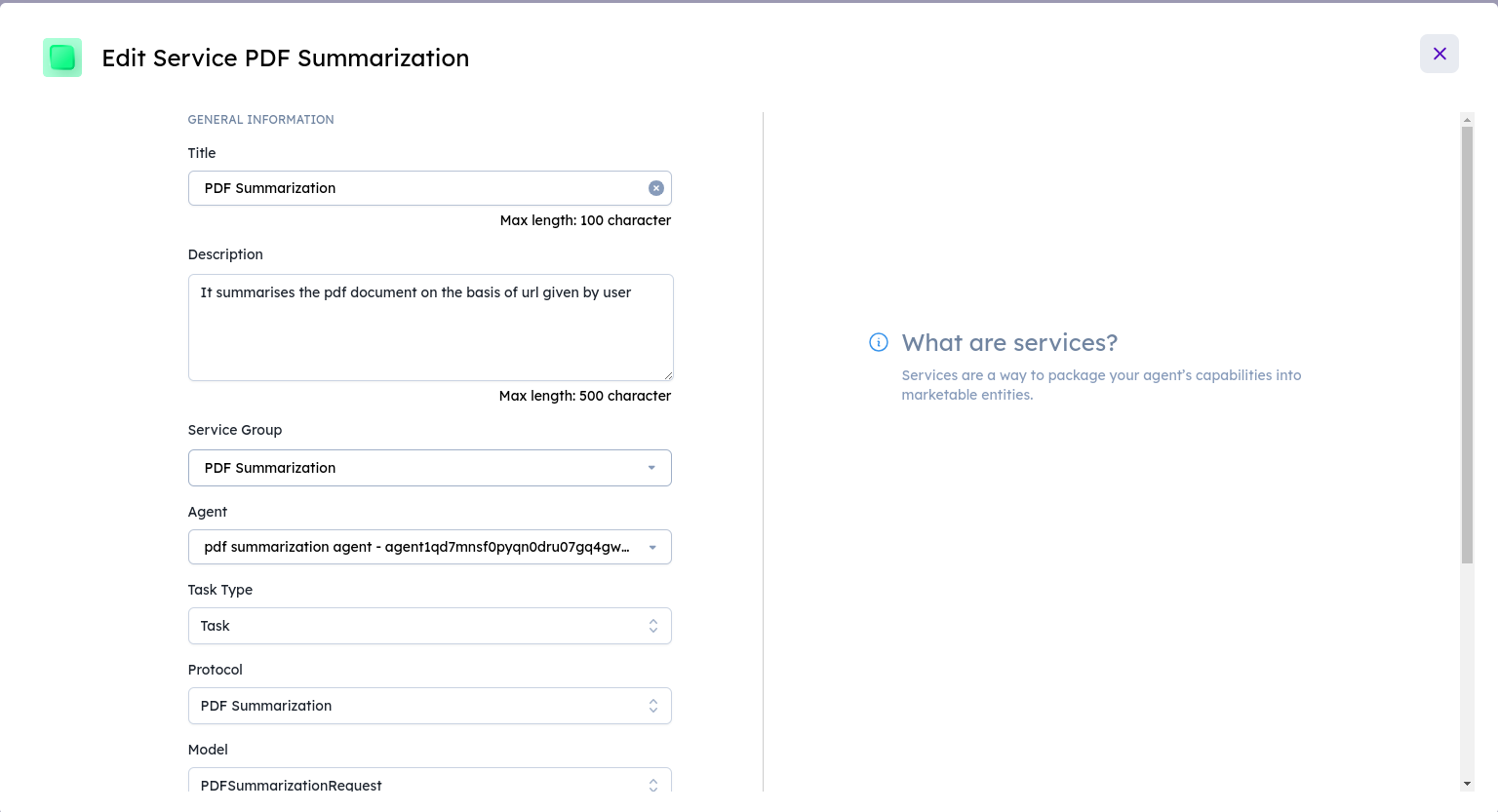
Now, your agents are enrolled as a service in Agentverse. You can manage and monitor them under the "Services" tab. Ensure that you follow the agent validation steps on Agent Explorer to confirm successful enrollment.