
 caelum0x
2b68bde5d5
Working tree is now the canonical repo. Off-chain play-money + trustless on-chain
(FPMM AMM + CLOB via UMA settlement), AI market factory, creator/social/distribution,
mobile shell + push, one-command demo + deploy-kit. Secrets excluded (see ENV-AND-KEYS.md).

Co-Authored-By: Claude Opus 4.8 (1M context) <noreply@anthropic.com>
Oracle Twitch Bot
This sub-repo has everything required to host the Oracle Twitch Bot and associated overlay and dock browser sources for OBS.
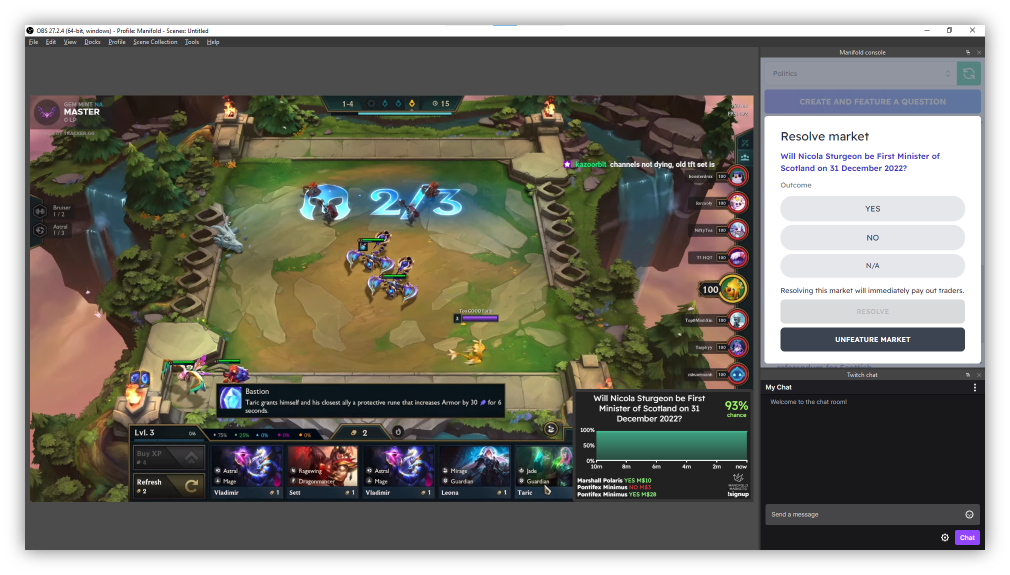
Environmental variables
This Twitch bot requires the following environmental variables to be defined:
- PUBLIC_FACING_URL: The public URL of the host server, without trailing slash, e.g. https://oracle.markets
- TWITCH_BOT_USERNAME: The username for the Twitch bot account.
- TWITCH_BOT_OAUTH_TOKEN: A valid OAuth token for the Twitch bot account obtained via this tool.
- TWITCH_BOT_CLIENT_ID: The client ID of the Twitch app used to authorize new users. This app can be created in the Twitch Developer Console.
- TWITCH_BOT_CLIENT_SECRET: The client secret of the Twitch app used to authorize new users.
- TWITCH_BOT_FIREBASE_KEY: The API key for the relevant Firebase Firestore. This is currently hardcoded - please ask the author of this repo for the key, or modify the code to point to a new Firestore appropriately.
The following environmental variables are available but optional:
- PORT: The port on which the webpages and API are hosted. Default: 9172
- TARGET: Represents which Oracle site to target and takes one of the following values (default: LOCAL):
- PROD (https://oracle.markets/)
- DEV (https://dev.oracle.markets/)
- PR_DEV (https://dev-git-twitch-prerelease-mantic.vercel.app/)
- LOCAL (http://localhost:3000/)
- DEBUG_TWITCH_ACCOUNT: The Twitch account to attach to when testing the bot locally. This must be all lowercase.
These can either be defined as global environmental variables on the system, or as a .env file in the root of the repository.
Starting development
- Ensure the environmental variables are correctly configured
- Ensure Yarn is installed
- Ensure
concurrentlyis installed globally (runnpm install -g concurrentlyto install) - Run the following commands from the root of the Oracle repository:
$ yarn$ cd twitch-bot$ yarn$ yarn dev:fullstack
The server automatically enables debugging in development mode. If using VSCode, you can attach to the process by pressing F5 and launching the Debug Twitch bot session.
Quick deployment to prod or dev servers
In order to deploy to the Oracle Twitch servers, you will need to have the appropriate permissions on your Google account, and the following software installed:
- NodeJS 16 or higher
- Yarn
- gcloud CLI (must be initialized with
gcloud auth login) - Docker
If you are using Windows, it is also recommended to have Git Bash installed, as the deployment script is targeted for use on Unix OSs.
Launch scripts/deploy-to-remote.sh. On Windows, this must be done through Git Bash. The script will ask whether you wish to deploy to the development or production server, and should then handle everything else.
Note: appropriate
.envfiles must be copied into thescripts/builddirectory for the deployed bot to launch successfully.
The first time this script is run it will need to download docker images, Yarn dependencies and build all the source from scratch, so be patient! Subsequent runs should only take a matter of seconds to complete.
Alternative deployment
This repo can be built into a Docker image ready for deployment to a hosting site as-is. The container host must have all the environmental variables set for this to work.
The Docker image can be built using the scripts/build-docker.sh script, and run with the scripts/launch-docker.sh script.
Fixing failed deployments
In the case that the bot fails to deploy, it is possible that future "quick deployments" (i.e. using the deploy-to-remote script) will fail due to being unable to instigate a smooth handover of control to the updated bot container.
In order to fix this, all running Docker containers must be killed before the script can be run. This can be done by SSHing into the remote server using gcloud compute ssh dev-twitch-bot OR gcloud compute ssh twitch-bot and then running docker kill $(docker ps -q)
Viewing logs in production
There are two ways to view the logs of the deployed bot:
- Go to https://console.cloud.google.com/logs/query?project=oracle and select either
bot-DEVorbot-PRODunderLog name. - SSH into the remote server using
gcloud compute ssh dev-twitch-botORgcloud compute ssh twitch-botand rundocker logs $(docker ps -q) -n 100
Viewing usage metrics
- Development: https://dev-twitch-bot.oracle.markets/metrics
- Production: https://twitch-bot.oracle.markets/metrics
Future development
- Port the overlay to a Twitch Extension to decrease viewer latency when viewing bets
- Support market types other than binary
- Rate limit management in the Twitch bot to prioritize outgoing messages when there is a risk of Twitch dropping them
- Support betting to a percentage
- Save which markets are currently featured on each Twitch channel to Firestore to support server rebooting without interruption
- Allow docks to set the group within which markets created through chat will be added
- Support renewing dock and overlay links in case of a leak
- Reduce image sizes loaded from googleusercontent
- Use gzip compression for serving webpages
Potential Kubernetes structure
Key principles
- Only max one instance of TMI server to prevent multiple bots responding to the same message
- Streams are sharded by hash to determine which bot responds to said stream's chat messages
- Bots can come online and go offline as demand increases or decreases (effectively autoscaling without the risk of multiple responses)
                                      ┌───────────►DOCK
                                      │
                        stream1   ┌───┴───┐
                       ┌─────────►│ BOT 1 ├───────►OVERLAY
                       │          └───┬───┘
                       │              │
                       │              └───────────►DOCK
                       │
                       │
                       │
┌───────────┐       ┌──▼──┐   s2  ┌───────┐
│ TWITCH.TV │◄─────►│ TMI │◄─────►│ BOT 2 ├──────►DOCK
│  SERVERS  │       └──▲──┘       └───────┘
└───────────┘          │
                       │              .
                       │              .
                       │              .
                       │
                       │          ┌───────┐
                       └─────────►│ BOT 9 ├──────►OVERLAY
                            s9    └───────┘